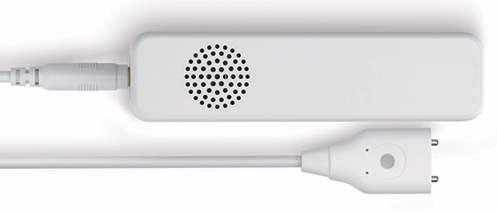
Aeotec Water Sensor 8 has been crafted as a safety sensor to help detect and prevent floods and water leaks using Z-Wave Plus. It is powered by Aeotec’s Gen8 technology and S2 framework. You can find out more about Water Sensor 8 by following that link.
To see whether Water Sensor 8 is known to be compatible with your Z-Wave system or not, please reference our Z-Wave gateway comparison listing. The technical specifications of Water Sensor 8 can be viewed at that link.
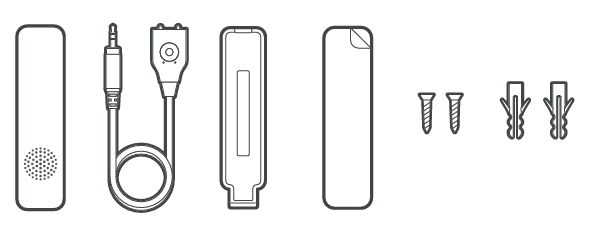
Package contents:
- Sensor Unit.
- Water Probe
- Mount
- Large Double-Sided Tape
- 2x Screws
- 2x Anchors
Button Functions.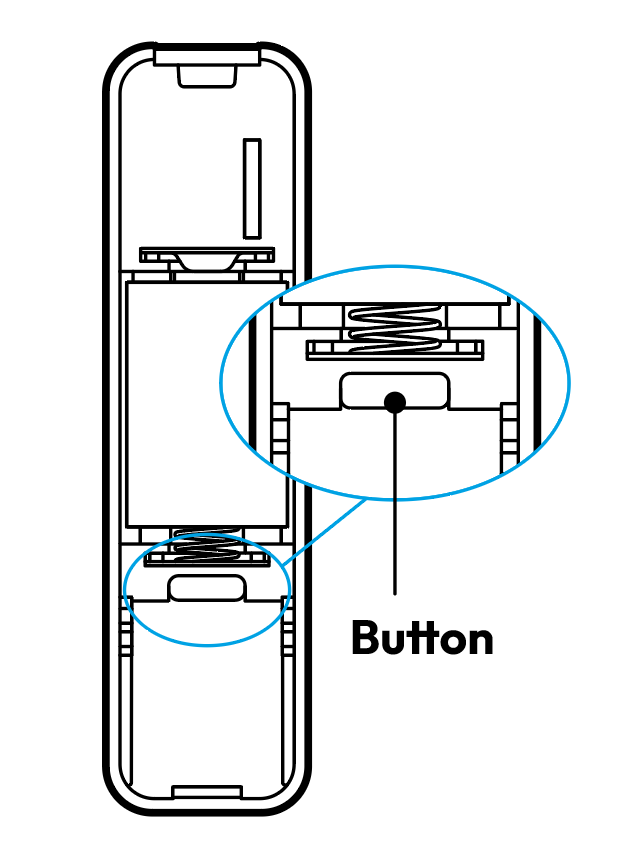 The Environment Sensor must support the following button functions.
| Push Type | Function | Description |
| Initial Power Up (Outside Network) | SmartStart Pairing | SmartStart:During this time, Water Sensor 8 will send inclusion requests for SmartStart Learn Mode.
|
| Initial Power Up (Inside Network) | 1. Wakeup Report 2. Reports all Sensor Data | Wakeup and Send All Sensor Reports: Water Sensor 8 will inspect itself for new temperature and humidity data, it then send a Wakeup Notification and then all sensor data, sensor will remain awake for 15 seconds.
|
| Short Press | 1. Quick Exit Inclusion or Exclusion mode. 2. Network Status | Exit Classic Inclusion or Exclusion: If Water Sensor 8 is in inclusion or exclusion mode, inclusion or exclusion would immediately stop and go into standby mode. Wakeup Report:A wakeup report will be sent to the Z-Wave Controller/hub and allow any queued commands to be sent to the Water Sensor 8.
|
| 2x Button Tap | Classic Inclusion or Exclusion | Classic Inclusion/Exclusion: Used to pair or unpair the Water Sensor. Exclusion can be done regardless if the sensor is paired or not.
|
| Long Press/Hold between 3 to 5 seconds. | Reports all Sensor Data | Reports all Sensor Data: When action button is released between 3-5 seconds, all sensor data including battery report will be sent to the Z-Wave Controller/hub.
|
| Long Press/Hold >12 seconds | Factory Reset | Factory Reset:Initiates "Device Reset Locally" causing the sensor to be removed from the hubs software and factory reset itself.
|
Important safety information.
Please read this and other device guides carefully. Failure to follow the recommendations set forth by Aeotec Limited may be dangerous or cause a violation of the law. The manufacturer, importer, distributor, and/or reseller will not be held responsible for any loss or damage resulting from not following any instructions in this guide or in other materials.
Keep the product and batteries away from open flames and extreme heat. Avoid direct sunlight or heat exposure. Always remove all batteries from products that are being stored and not used. Batteries may damage the appliance if they leak. Do not use rechargeable batteries. Ensure correct polarity when inserting the batteries. Improper battery use may damage the product.
Water Sensor 8 is intended for indoor use in dry locations only. Do not use in damp, moist, and/or wet locations.
Quick start.
Getting your Water Sensor 8 up and running is as simple as installing it and linking it to your Z-Wave network. The following instructions tell you how to add your Water Sensor 8 to your Z-Wave network using an existing gateway.
Power Water Sensor 8.
Water Sensor 8 has a battery tab in this unit to keep the unit from utilizing the battery when it is first purchased. Make sure that you remove this tab before you continue with the installation.
1. Slide the back cover out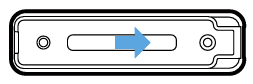
2. Lift the back cover up
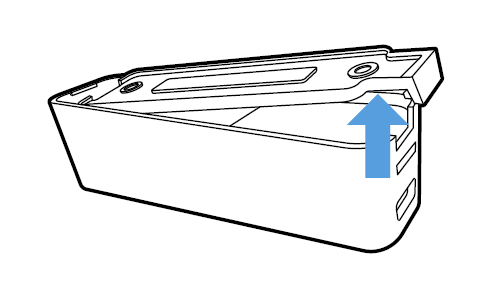
3. Pull the battery tab out which should cause the battery to connect.
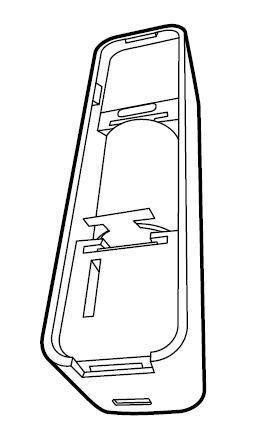
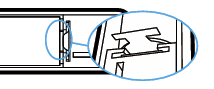
4. Water Sensor 8 is now ready to be paired to any compatible Z-Wave Controller.
Using an existing gateway to pair.
This section will go over brief steps to connecting Water Sensor 8, for further details on connecting this product to your hub, click on the hub that you have to access more detailed steps.
Initiate classic pair mode with Water Sensor 8:
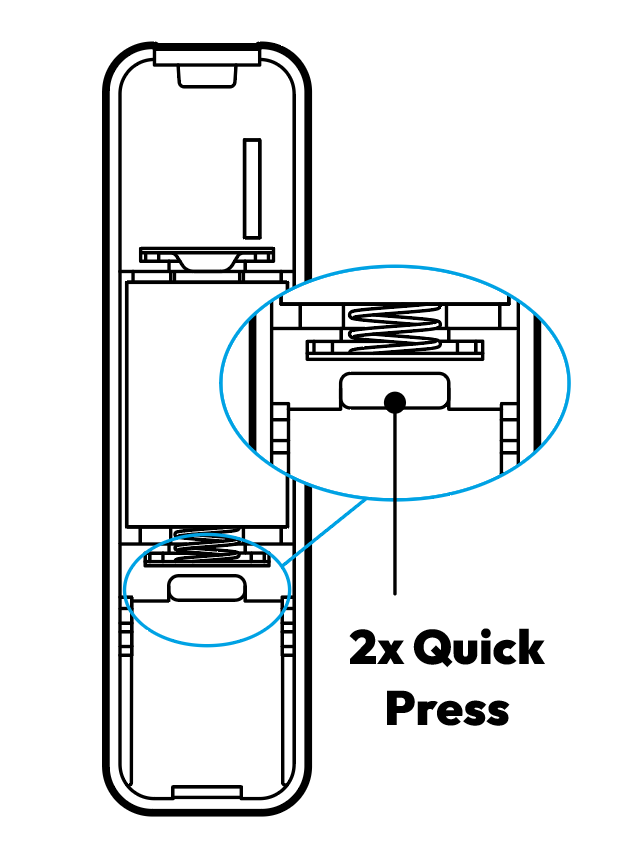 Quick Press the button twice (2x times) within 1 second while your hub is in pair mode - the green LED will flash fast when the sensor is attempting to include/pair or exclude/reset (depending on what mode your z-wave controller is in).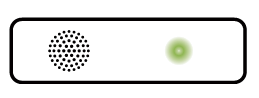
Using an existing gateway to pair.
This section will go over brief steps to connecting Water Sensor 8, for further details on connecting this product to your hub, click on the hub that you have to access more detailed steps.
- Aeotec AutoPilot:
- Open up AutoPilot UI
- Click on "DEVICES"
- Click on "+ Add new"
- Click on "+"
- Click on "+ Add"
- Now tap the Action Button 2x times within 1 second on your Water Sensor 8.
- Aeotec Smart Home Hub / SmartThings:
- Open SmarThings app.
- Tap + (at the top right corner).
- Tap "Add device"
- Tap Scan Nearby.
- Now tap the Action Button 2x times within 1 second on your Water Sensor 8.
- Click on "Setup" when the new device appears.
- Scan the QR code, or choose to enter the 5-digit DSK code.
- Home Assistant / Z-WaveJS:
- Open up Home Assistant
- Click on "Configuration" at the bottom left of the page.
- Click on "Integrations".
- Click on "Configure".
- Click on "ADD NODE".
- Click on "START INCLUSION"
- Now tap the Action Button 2x times within 1 second on your Water Sensor 8.
- Hubitat:
- Open up your Hubitat interface.
- Click on "Devices".
- Click on "Discover Devices".
- Click on "Z-Wave."
- Click on "Start Z-wave Inclusion."
- Now tap the Action Button 2x times within 1 second on your Water Sensor 8.
- SmartStart QR code scanning:
- If your Z-Wave gateway supports SmartStart, you can scan the QR code on the Water Sensor to automatically pair the sensor if your Z-Wave hub supports this.
- You can set your hub into SmartStart pair mode, then power up the Water Sensor 8 to automatically pair the sensor
- For most other hubs:
- Set your Z-Wave hub to connect new Z-Wave devices.
- Tap the Water Sensor 8 tap the Action Button 2x times within 1 second.
- If prompted, scan the QR code or enter the 5 digit DSK code.
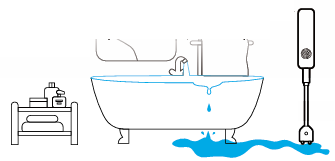
Water Sensor 8 utilizes double-sided adhesive tape to allow you to mount Water Sensor 8 onto any flat surface, and extend the probe in the location where you would suspect water to pool.
Make sure to install your sensor on a well ventilated spot.
Wakeup Report.
This device is battery operated and utilizes a deep sleep state most of the time to save battery life. Communication with the device is limited. In order to communicate with Water Sensor, a Z-Wave controller is needed in the network.
This device will wakeup regularly and report a wakeup state by sending out a Wakeup Report. The controller can then send out queued commands for the Water Sensor to control it before it goes back to sleep.
If the device was included by a Z-Wave controller, the controller will usually perform all necessary configurations. The wakeup interval is a trade-off between maximal battery lifetime and the desired responses of the device.
Wakeup Water Sensor:
- Tap the button once to Water Sensor Sensor for 15 seconds.
Removing your Water Sensor from a Z-Wave network (Exclusion).
Water Sensor can be removed from your Z-Wave network at any time. You’ll need to use an existing Z-Wave network to do this and the following instructions which will tell you how to do this using your existing Z-Wave Network.
This method can be used with any Primary Z-Wave Controller even if it is not directly paired to Water Sensor.
Using an existing gateway.
1. Place your gateway or controller into Z-Wave unpair or exclusion mode. (Please refer to your controller/gateway manual on how to do this)
2. Tap the button on Water Sensor 2x times within 1 second.
3. Your gateway should confirm if Water Sensor is successfully excluded from your network.
Manually Factory reset Water Sensor.
This device also allows being reset without any involvement of a Z-Wave controller. This procedure should only be used when the primary controller is inoperable otherwise your controller will be left with a phantom node that does not exist.
Factory Reset Water Sensor:
- Push the button of Water Sensor for 12+ seconds.
Product Usage.
This device will start monitoring all air parameters once paired to your Z-Wave network. The measurement of air happens once every 15 minutes, while tapping the Tamper Switch once will force an immediate measurement and change indication based on the danger level.
Unsolicited Reported Sensors.
Humidity: +/- 3 % on relative humidity, +/-1 %
- Default Activity:
- Humidity is checked every 15 minutes
- When checked, if the immediate humidity is +/- 5% RH change against the previous reported value, humidity is reported.
- If humidity does not change or get reported over +/- 5% RH after 43200 seconds (or 12 hours), it will report a new humidity value regardless of change.
- Settings affecting this report
- Parameter 1 [4 byte] = 900
- Parameter 3 [1 byte] = (Decimal Value*0.1 = Humidity)
- EU/US = 50 (or +/- 5.0% RH)
- Parameter 24 [4 byte] = 43200
Hysteresis Temperature: 0 ... 65 °C +/- 1 Kelvin
- Default Activity:
- Temperature is checked every 15 minutes
- When checked, if the immediate temperature is +/- 2.0C (EU) or +/- 3.6F (US) degrees of change against the previous reported value, temperature is reported.
- If temperature does not change or get reported over +/- 2.0C (EU) or +/- 3.6F (US) degree after 43200 seconds (or 12 hours), it will report a new temperature value regardless of change.
- Settings affecting this report
- Parameter 1 [4 byte] = 900
- Parameter 2 [1 byte] = (Decimal Value*0.1 = Temperature Threshold)
- US = 36 (or +/-3.6F)
- EU = 20 (or +/-2.0C)
- Parameter 24 [4 byte] = 43200
Dew Point: 0 ... 65 °C +/- 1 Kelvin (calculated from other sensor values)
- Updates a new report any time humidity or temperature reports a new value.
Battery Report:
- Voltage Level and Battery Level
- 2.90V or greater = 100% battery level
- 2.6V or less = 0% battery level
- Default Activity:
- Sends new battery report upon wakeup or power on.
- If battery level drops under 20%, then a battery report will be sent.
- Settings affecting this report:
- Parameter 23 [1 byte] = 20
Wireless Reports and Command Class.
The measured values of Humidity and Temperature are reported to your Z-Wave gateway, below are the primary command class used to report the sensor values.
Main command classes and descriptions.
Each command class will output specific values to your Z-Wave gateway, below is a brief sliver of information that should be displayed in your controller if it is supported.
Notification Report
Water Alarm (0x05)
Water Leak = 0x02
No Water = 0x00
Home Security (0x07)
Tamper = 0x03
Idle = 0x00
Power Management (0x08)
Idle = 0x00
Power applied = 0x01
AC main disconnected = 0x02
AC main connected = 0x03
Replace battery = 0x0B
Weather Alarm (0x10)
Idle = 0x00
Moisture Alert = 0x02
Heat Alarm (0x04)
Idle = 0x00
Overheat = 0x02
Underheat = 0x06
Binary Sensor V2
Water (0x06)
0x00 = Window/Magnet is in a closed state
0xFF = Window/Magnet is in an opened state
General (0x01)
0x00 = No Mold
0xFF = Dangerous Environment
Multilevel Sensor V11
Air temperature
Scale = Celsius or Fahrenheit
Precision = 1
Size = 2
Humidity
Scale = Percentage
Precision = 0
Size = 2
Dew point
Scale = Celsius or Fahrenheit
Precision = 1
Size = 2
Association Groups.
Group Association is a specific function in Z-Wave that allows you to tell Water Sensor who it can speak to. Some devices may only have 1 group association meant for the gateway, or multiple group associations that can be used for specific events. This type of function isn't used too often, but when it is available, you may be able to use it to directly communicate to Z-Wave devices instead of controlling a scene within a gateway which can have unforeseen delays.
Some gateways have the ability to set Group Associations to devices that have these special events and functions. Typically this is used to allow your gateway to update the status of Water Sensor instantly.
By default, your primary gateway should have been associated with Water Sensor automatically during the pairing of your Siren. For any case you have a Secondary Z-Wave Controller, you'll need to associate it to your Water Sensor in order for your secondary controller to update its status.
| Group Number | Description | Parameter # reference | Description |
|---|---|---|---|
| 1 | Lifeline | N/A | Assigned to the Z-Wave Controller/Hub: determines where it should send its standard reports to. |
| 2 | Control | N/A | Basic Set: Controls a device on or off along with the open/close status of the magnet. |
| 3 | Alarm | N/A | Notification Report: Send an alarm message when magnet is in an open state. |
| 4 | Tamper | N/A | Notification report: Sends alarm message when tamper alarm is triggered. |
| 5 | Temperature High Trigger | 14, 18 | Basic Set Issues an ON command when temperature detected is higher than the set value set in Parameter 14. |
| 6 | Temperature Low Trigger | 15, 19 | Basic Set Issues an ON command when temperature detected is lower than the set value set in Parameter 15. |
| 7 | Humidity High Trigger | 16, 20 | Basic Set Issues an ON command when humidity detected is higher than the set value set in Parameter 16. |
| 8 | Humidity Low Trigger | 17 | Basic Set Issues an ON command when humidity is detected is lower than the set value on Parameter 17. |
| 9 | Mold Danger | 13 | Notification Report Sends Alarm messages when mold danger is present. |
| 10 | Air Temperature | N/A | Multilevel Sensor Report Issues a temperature report to a Z-Wave Device that supports receiving external Z-Wave temperature reports. Useful for temperature control Z-Wave devices such as thermostats. |
There are further advanced parameter settings and group association settings not listed in this guide. You can find the attachment of the advanced engineering sheet of the Water Sensor 8 which will give you all possible functions of the Water Sensor 8 that may be missing in this guide.
Here is the configuration parameter table for the AEOTEC Water Sensor 8:
| Parameter # | Byte Size | Description | Settings / Values | Value Description |
| 0x01 (1) | 4 | Set Threshold Check Time Sets the check interval time. | 0 30 ~ 65535 | Disable Seconds (Minimum time is 30 seconds when on battery) |
| 0x02 (2) | 1 | Minimum Temperature Change to Report Triggers a temperature report based on change. | 0 1 ~ 255 | Disable 0.1 ~ 25.5 degree |
| 0x03 (3) | 1 | Minimum Humidity Change to Report Triggers a humidity report based on change. | 0 1 ~ 255 | Disable 0.1 ~ 25.5 % |
| 0x04 (4) | 1 | Enable LED Indication (Bit field) Defines when the green or red LED indicates events. | 0 ~ 31 (0x00 ~ 0x1F) | 0: Disable all indications. Bit 0: Periodic Reports (green) Bit 1: Wake up interval report (green) Bit 2: Mold danger Report (red) Bit 3: Device Tampering (red) Bit 4: Dry contact Status Change (red) |
| 0x05 (5) | 1 | Polarity for Dry Contact Sensor Sets the alarm state logic for the dry contact. | 0 1 | Alarm when closed, Idle when open Alarm when open, Idle when closed |
| 0x06 (6) | 1 | Group 2 Trigger Defines dry contact status that triggers Group 2. | 0 1 2 | Switch after dry contact closed and open Switch after dry contact closed Switch after dry contact open |
| 0x07 (7) | 1 | Command Send to Group 2 Defines command sent to 2nd Association Group. | 0 1 2 | On Off On and Off |
| 0x08 (8) | 1 | Basic On of Group 2 Basic Set value sent for "On" event. | 0 ~ 255 | Value (Default: 255) |
| 0x09 (9) | 1 | Basic Off of Group 2 Basic Set value sent for "Off" event. | 0 ~ 255 | Value (Default: 0) |
| 0x0A (10) | 1 | Notification Type Sets notification and sensor type mapping. | 0 1 2 3 4 5 6 7 8 | Water Alarm Smoke Alarm CO Alarm CO2 Alarm Access Control (Door/Window) Access Control (Tilt) Home Security (Motion) Home Security (Glass Break) Emergency Alarm (Panic) |
| 0x0C (12) | 1 | Sensor Limit Enable (Bit field) Enables limits for Temperature and Humidity. | 0 ~ 15 (0x00 ~ 0x0F) | 0: Disable Bit 0: Temperature upper limit Bit 1: Humidity upper limit Bit 2: Temperature lower limit Bit 3: Humidity lower limit |
| 0x0D (13) | 1 | Offset Value for Mold Danger Alarm Adjusts the humidity threshold for mold danger. | 0 ~ 40 | Offset Value |
| 0x0E (14) | 2 | Temperature Upper Watermark Sends BASIC Set to Group 5 if exceeded. | 1 ~ 1000 | 0.1 ~ 100.0 degree |
| 0x0F (15) | 2 | Temperature Lower Watermark Sends BASIC Set to Group 6 if below. | -200 ~ 1000 | -20.0 ~ +100.0 degree |
| 0x10 (16) | 2 | Humidity Upper Watermark Sends BASIC Set to Group 7 if exceeded. | 0 ~ 1000 | 0 ~ 100.0 % |
| 0x11 (17) | 2 | Humidity Lower Watermark Sends BASIC Set to Group 8 if below. | 0 ~ 1000 | 0 ~ 100.0 % |
| 0x12 (18) | 1 | High Temp Trigger BASIC Set Value sent to Group 5 when triggered. | 0 ~ 255 | Basic Set Value |
| 0x13 (19) | 1 | Low Temp Trigger BASIC Set Value sent to Group 6 when triggered. | 0 ~ 255 | Basic Set Value |
| 0x14 (20) | 1 | High Humidity Trigger BASIC Set Value sent to Group 7 when triggered. | 0 ~ 255 | Basic Set Value |
| 0x15 (21) | 1 | Low Humidity Trigger BASIC Set Value sent to Group 8 when triggered. | 0 ~ 255 | Basic Set Value |
| 0x16 (22) | 1 | Enable Binary Sensor Report Backwards compatibility for alarm state. | 0 1 | Disable Enable |
| 0x17 (23) | 1 | Low Battery Threshold Level to report low battery. | 10 ~ 50 | 10 ~ 50 % |
| 0x18 (24) | 4 | Periodic Reports Report period for battery, temp, and humidity. | 0 10 ~ 65535 | Disable Seconds (Minimum is 30s) |
| 0x19 (25) | 1 | Temperature Offset Calibrates temperature sensor value. | -200 ~ 200 | -20.0 ~ 20.0 degrees |
| 0x1A (26) | 2 | Humidity Offset Calibrates humidity sensor value. | -200 ~ 200 | -20.0 ~ 20.0 % |
| 0x40 (64) | 1 | Temperature & Dew Point Scale Sets scale for auto reports and settings. | 0 1 | Celsius Fahrenheit |
Was this article helpful?
That’s Great!
Thank you for your feedback
Sorry! We couldn't be helpful
Thank you for your feedback
Feedback sent
We appreciate your effort and will try to fix the article